

Smart Optimization for Lighting and Color
AI detects uneven lighting and color issues in each photo and intelligently balances and corrects them, with no manual editing required.
Make your photos look clearer, brighter and more polished. AI-powered Smart Optimization detects lighting and color problems and corrects them automatically, while style presets let you apply a consistent look to product photos and everyday pictures. Process a whole batch and save the results to the folder you choose.
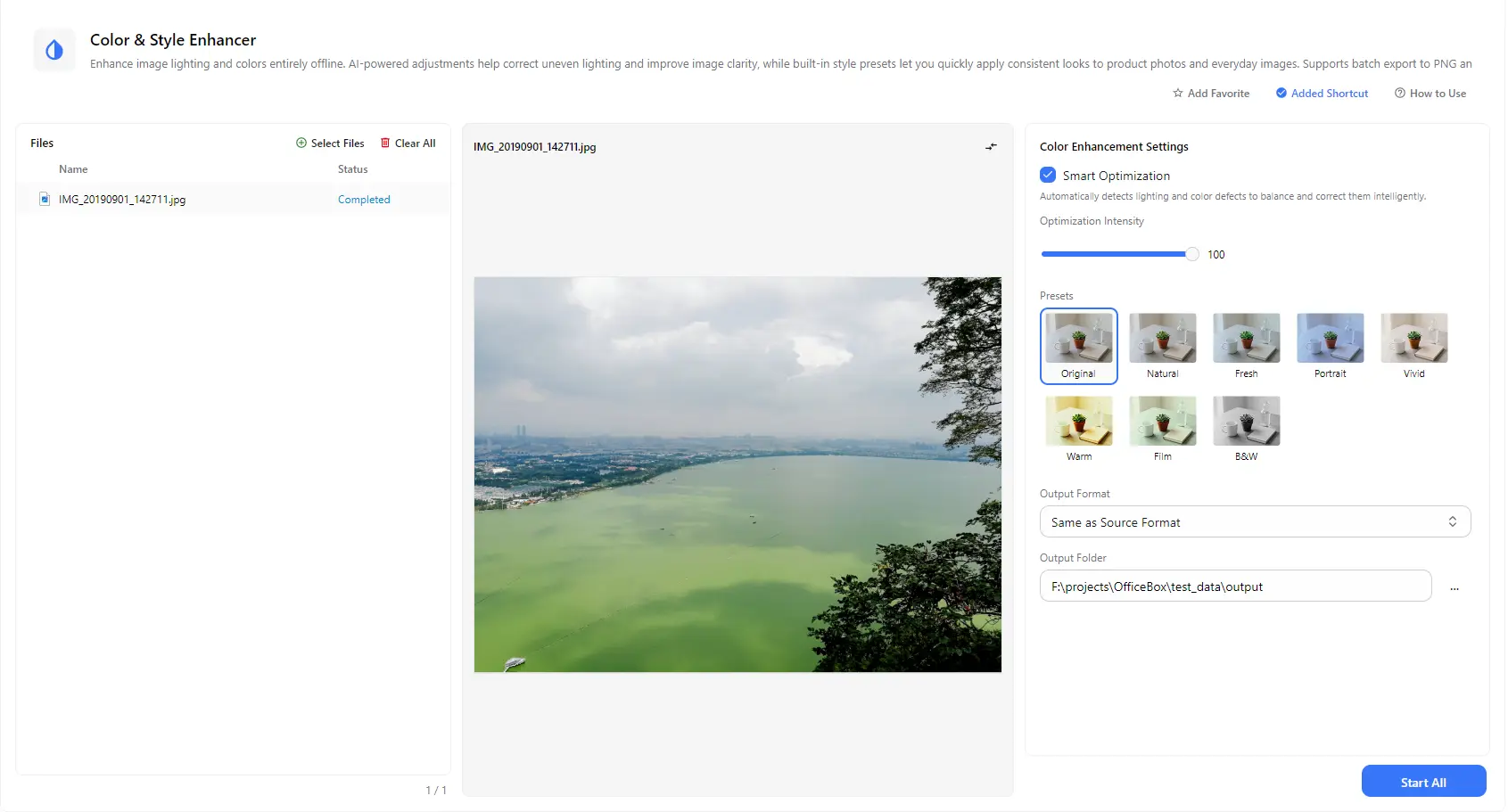
Features
AI detects uneven lighting and color issues in each photo and intelligently balances and corrects them, with no manual editing required.
Use the intensity slider to choose how strong the enhancement should be, from a subtle improvement to a more pronounced correction.
Apply a consistent look with presets such as Natural, Fresh, Portrait, Vivid, Warm, Film and B&W, or keep the Original look.
See how your photo looks in the preview as you change the settings, so you can find the right balance before processing.
Add multiple images and apply the same enhancement settings and style to all of them with a single Start All action, keeping the results consistent across the entire set.
Keep the same format as the source image or choose a different output format, and select the folder where the enhanced images will be saved.
How it works
Open PurZeno and select Color & Style Enhancer from the tool list.
Click Select Files to add one or more photos. Turn on Smart Optimization, adjust the intensity and choose a style preset while checking the preview.
Choose an output format and folder, then click Start All. When all files show as completed, open the folder to find your enhanced images.
Use cases
Correct dull colors and uneven lighting in travel shots, family photos and social media pictures without learning a complex editing program.
Apply the same style to a batch of product images so catalogs, listings and online stores have a uniform, polished look.
Brighten and rebalance photos taken in poor lighting, such as scenes with gray skies, dim indoor settings or backlit subjects.
Use style presets to give a set of photos a cohesive mood for albums, portfolios, blogs and presentations.
Good to know
Add your photo using Select Files, keep Smart Optimization turned on, choose a style preset if you want one, select an output folder and click Start All.
Smart Optimization automatically detects lighting and color issues in your photo and corrects them intelligently. You can adjust the optimization intensity to control how strong the effect is.
The presets are Original, Natural, Fresh, Portrait, Vivid, Warm, Film and B&W. Try them in the preview to see which look best suits your photo.
Turn on Smart Optimization and increase the optimization intensity. The AI helps balance dark and bright areas and correct color issues.
Yes. Add multiple images and process them together in one batch. Each file displays its own processing status.
Same as Source Format keeps each image in its original format. Choose a different format if you need a specific one, such as PNG.
The first time you use Color & Style Enhancer, PurZeno downloads the model for this task. You generally won't need to download it again, unless the model is updated or needs to be downloaded again. These are small task-specific models, usually from a few megabytes to around a hundred megabytes.
No. After the model is downloaded, it runs locally on your computer. Your photos are not uploaded to any server.
The AI model runs locally, so processing speed depends on your computer's hardware, including its processor and available memory. Performance may vary from one device to another.
Get PDF, image and file tools in one private desktop app, and keep your files on your computer.
Download PurZeno