

Add Text or Image Watermarks
Choose a text watermark such as "Confidential" or "All Rights Reserved", or use an image watermark such as a logo or stamp to mark your documents.
Add a text or image watermark to one PDF or a whole batch of documents. Customize the watermark text, font, color, size, rotation angle, opacity and density, check the result in the page preview, and save the watermarked PDFs to the folder you choose.
Features
Choose a text watermark such as "Confidential" or "All Rights Reserved", or use an image watermark such as a logo or stamp to mark your documents.
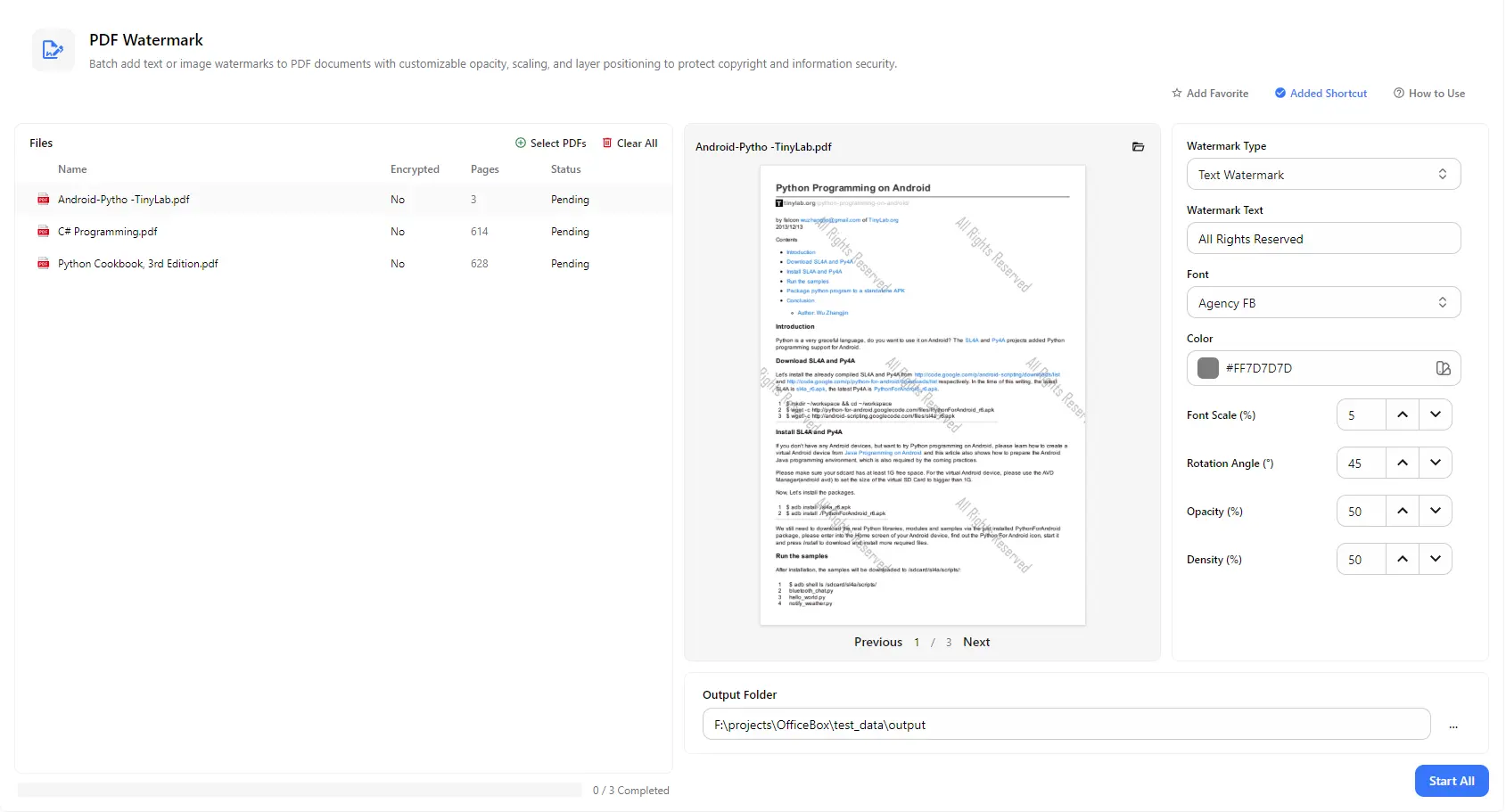
Type your own watermark text, pick a font and color, and set the font scale so the watermark stands out without covering the page content.
Rotate the watermark to a diagonal or any other angle, adjust its transparency, and control how densely it repeats across the page, from a subtle mark to full-page coverage.
Add several PDF files and apply the same watermark settings to all of them with a single Start All action, instead of editing each document separately.
See your watermark on a real page of the document and flip through its pages. The preview updates as you change the settings, so you can get the look right before processing.
The file list shows each PDF's page count, encryption status and progress. Choose an output folder to find all your watermarked PDFs in one place.
How it works
Open PurZeno and select PDF Watermark from the tool list.
Click Select PDFs to add one or more documents. Choose a text or image watermark, then adjust the text, font, color, scale, angle, opacity and density while checking the preview.
Choose an output folder and click Start All. When all files show as completed, open the folder to find your watermarked PDFs.
Use cases
Add a clear "Confidential", "Draft" or "Internal Use Only" watermark to contracts, proposals and reports before they are circulated.
Overlay your name, company or a copyright notice on ebooks, course materials, designs and portfolios to discourage unauthorized reuse.
Apply a logo as an image watermark to brochures, quotes and presentations so every file you send carries your brand.
Watermark each copy with the recipient's name or a reference label before sharing, making it easier to identify the source if a file is leaked.
Good to know
Click Select PDFs to add your file, choose a text or image watermark, adjust the font, color, angle, opacity and density, choose an output folder and click Start All.
Yes. Add as many PDFs as you need and apply the same watermark to all of them in one batch. Each file shows its own status, and the progress bar tells you how many files are completed.
Yes. Besides text watermarks, you can use an image watermark such as a logo or stamp to brand your PDFs.
Lower the opacity, reduce the font scale or use a lighter color such as light gray. A smaller density gives you fewer repeated marks across the page, while a diagonal angle keeps text readable underneath.
No. PurZeno processes PDF files locally on your computer. Your documents are not uploaded to PurZeno or any third-party server.
The watermarked files are saved to the output folder you choose, so your original PDFs stay where they are.
Get PDF, image and file tools in one private desktop app, and keep your files on your computer.
Download PurZeno