

Convert PDF to JPG, PNG, WebP or TIFF
Choose the output format that suits the job: JPG for small, easy-to-share pictures, PNG for sharp text and graphics, WebP for compact web-ready images, or TIFF for archiving and printing workflows.
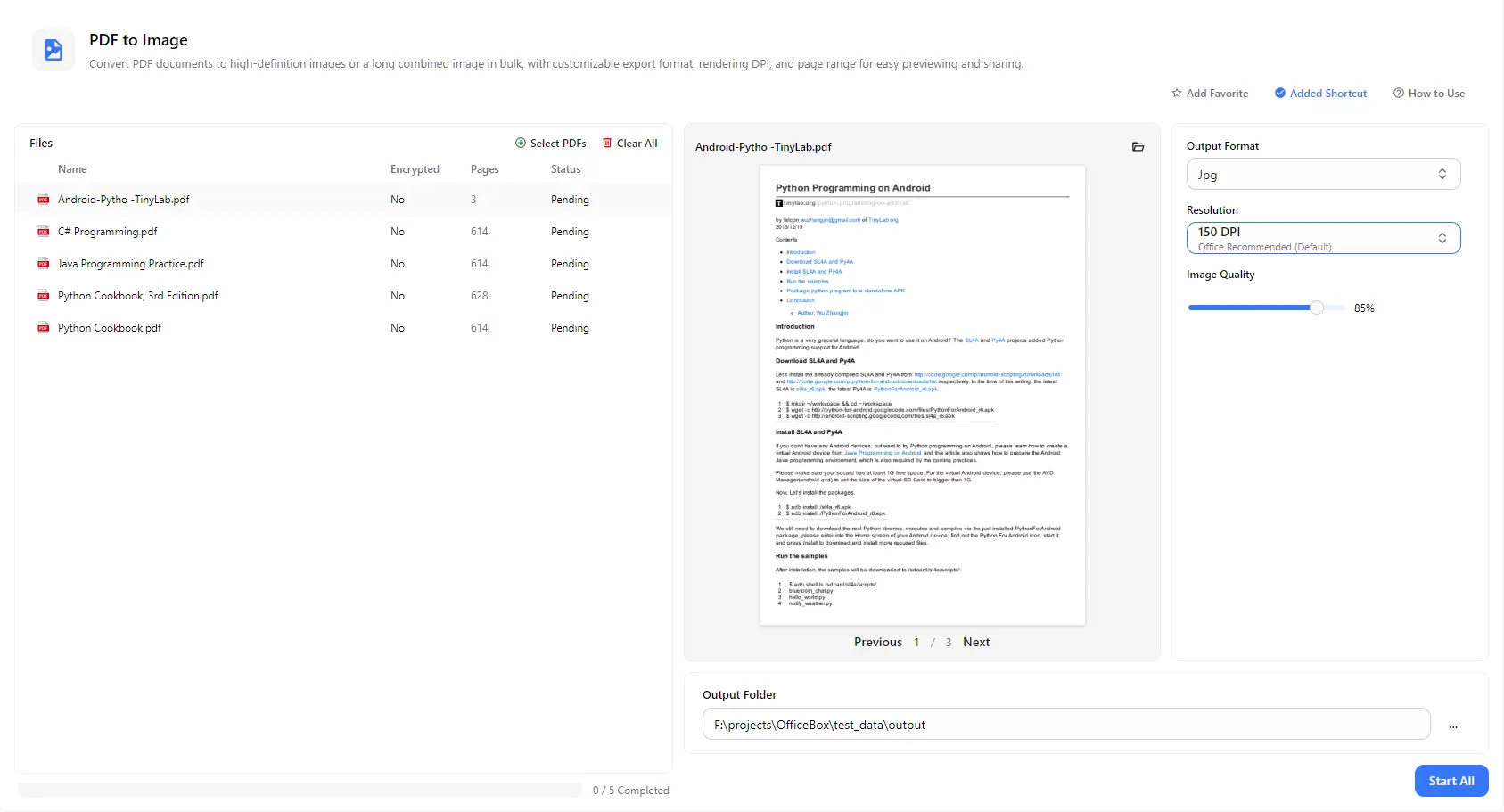
Turn PDF pages into JPG, PNG, WebP or TIFF images in a few clicks. Add one PDF or a whole batch, pick the resolution and image quality that fit your needs, preview each document, and save the images to the folder you choose.
Features
Choose the output format that suits the job: JPG for small, easy-to-share pictures, PNG for sharp text and graphics, WebP for compact web-ready images, or TIFF for archiving and printing workflows.
Select 72 DPI for quick on-screen previews, 96 DPI for standard screen display, 150 DPI for everyday office use (the default), or 200 DPI when you need sharper detail for printing or close reading.
Use the image quality slider to balance picture clarity against file size, so the converted images are easy to email, upload or store.
Add several PDF files at once and convert them together with a single Start All action, instead of exporting each document one by one.
Click any file in the list to flip through its pages in the preview panel. The file list also shows each document's page count, encryption status and conversion progress.
Set an output folder and find all your converted images in one place when processing finishes, with an overall progress count to track the batch.
How it works
Open PurZeno and select PDF to Image from the tool list.
Click Select PDFs to add one or more documents, then choose the output format (JPG, PNG, WebP or TIFF), the resolution (72, 96, 150 or 200 DPI) and the image quality.
Choose an output folder and click Start All. When all files show as completed, open the folder to find your images.
Use cases
Convert PDF pages to JPG or PNG when you need to paste them into a presentation, send them through a messaging app or insert them into a document, without asking recipients to open a PDF.
Export a cover page or key pages as lightweight WebP or JPG images for web pages, product catalogs, document libraries and knowledge bases.
Save contracts, forms and scanned pages as high-resolution PNG or TIFF images for record keeping, printing or use in other image-based tools.
Turn charts, diagrams, layouts and book pages into images you can annotate, crop or reuse in reports, tutorials and course materials.
Good to know
Add your PDF with Select PDFs, choose JPG or PNG as the output format, pick a resolution, select an output folder and click Start All. The converted images are saved to that folder.
Yes. Add as many PDFs as you need and convert them all in one batch with Start All. Each file shows its own status, and the progress bar tells you how many files are completed.
Use JPG for small files that are easy to share, PNG for crisp text, screenshots and graphics, WebP for compact images on websites, and TIFF for archiving or print workflows.
150 DPI is the recommended default for most office tasks. Use 72 or 96 DPI for small on-screen previews and quick sharing, and 200 DPI when you need clearer detail for printing or zooming in. Higher DPI produces sharper but larger images.
No. PurZeno converts PDF files locally on your computer. Your documents are not uploaded to PurZeno or any third-party server.
A higher DPI keeps more detail, and PNG or TIFF preserve sharp text best. JPG and WebP trade some detail for smaller files, which you can control with the image quality slider. If text looks soft, try a higher DPI or switch to PNG.
Get PDF, image and file tools in one private desktop app, and keep your files on your computer.
Download PurZeno