

Extract Text from Images and Scanned PDFs
Recognize text in image files and scanned PDF documents, so you can copy, search and edit content that would otherwise be locked inside an image.
Turn pictures of text and scanned documents into editable text. Add images and PDFs in bulk, preview the areas the OCR is reading, review and correct the recognized text, and export the results to the folder you choose. Recognition runs on your own computer.
Features
Recognize text in image files and scanned PDF documents, so you can copy, search and edit content that would otherwise be locked inside an image.
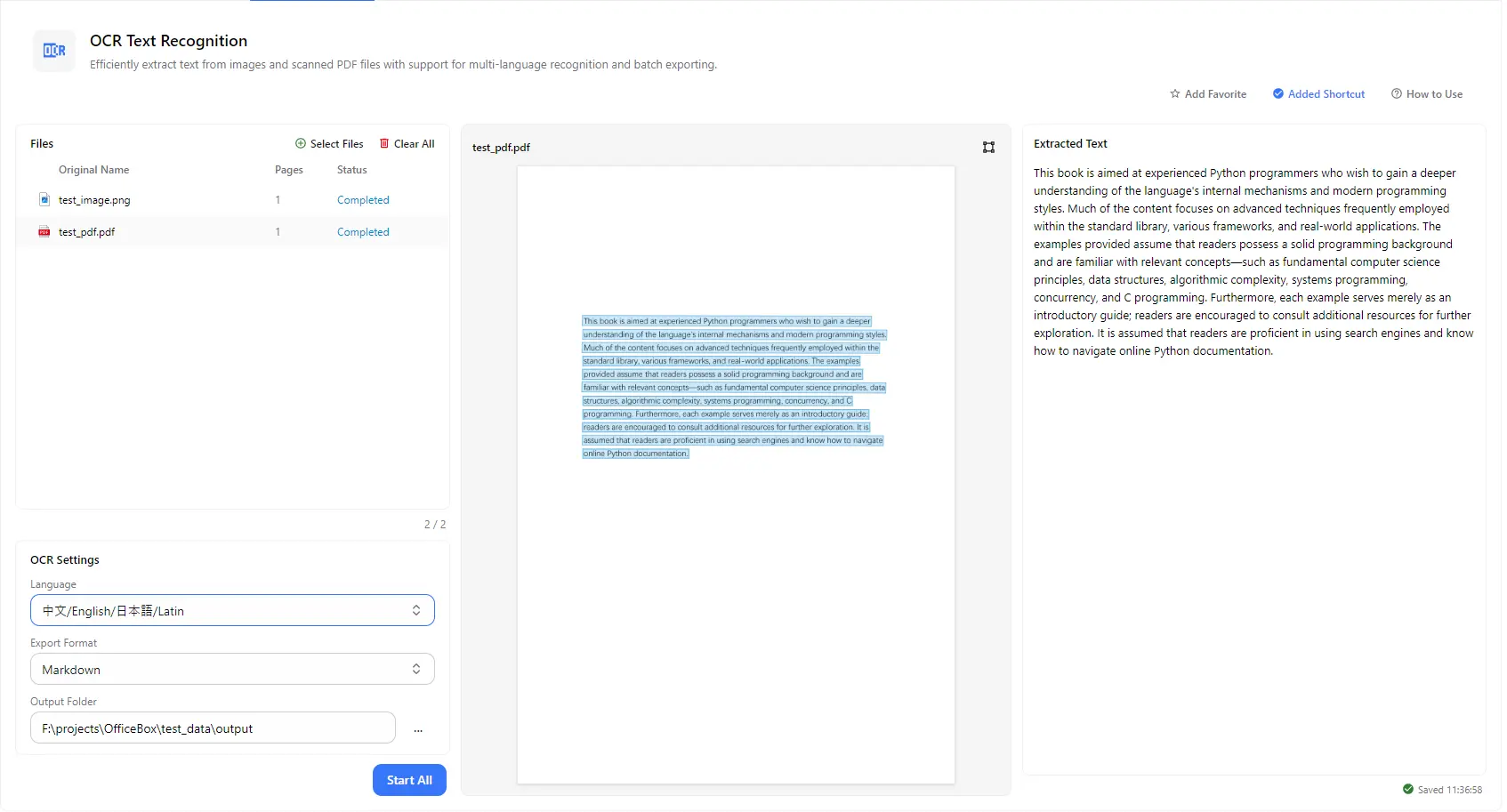
Choose the language setting that matches your document, including Chinese, English, Japanese and Latin-script text.
Add multiple images and PDFs and process them together with a single Start All action. The file list shows each file's page count and status.
See the page with detected text regions highlighted, so you can check that the OCR is reading the right parts of the page.
Read the recognized text next to the original page and correct any mistakes directly in the text panel. Your edits are saved automatically to the corresponding text file.
Choose an export format, such as Markdown, and the folder where the extracted text files are saved.
How it works
Open PurZeno and select OCR Text Recognition from the tool list.
Click Select Files to add images or PDFs. Choose the recognition language and export format, then check the preview and extracted text for each file.
Choose an output folder and click Start All. Correct any mistakes in the text panel if needed, then find your exported text files in the selected folder.
Use cases
Convert scanned PDFs and photographed pages into text you can search, copy and reuse in other documents.
Extract text from screenshots, slides, posters and photos of printed material instead of retyping it by hand.
Turn pages from books, papers and printed notes into Markdown or text files for studying, quoting and organizing.
Recognize mixed-language documents and multilingual material with language settings designed for Chinese, English, Japanese and Latin-script text.
Good to know
Click Select Files to add your image, choose the recognition language and export format, select an output folder and click Start All. The extracted text appears in the text panel and is saved to your selected folder.
Add the scanned PDF, choose the language, and click Start All. Every page is recognized and the text is exported in your chosen format, such as Markdown.
The recognition language list includes Chinese, English, Japanese and Latin-script text. Choose the setting that matches your document.
Yes. Correct any mistakes directly in the extracted text panel. Your changes are saved automatically to the corresponding text file.
Use sharp, well-lit images or scans with upright text and good contrast. Choose the language that matches your document, and check the highlighted areas in the preview to make sure the text is being read correctly.
The first time you use OCR, PurZeno downloads the model required for this task. You generally won't need to download it again, unless the model is updated or needs to be downloaded again. These are small, task-specific models, usually ranging from a few megabytes to around 100 megabytes.
No. After the model is downloaded, it runs locally on your computer. Your files are not uploaded to any server.
The AI model runs locally, so processing speed depends on your computer's hardware, mainly the CPU and memory. Processing times may vary depending on your device.
Get PDF, image and file tools in one private desktop app, and keep your files on your computer.
Download PurZeno