
File Renamer

Rename hundreds of files in one go with clear, rule-based steps. Replace or remove text, insert new text, change letter case, add sequence numbers or use regular expressions, see every new name in a live preview, and undo mistakes before you apply the changes to your files.

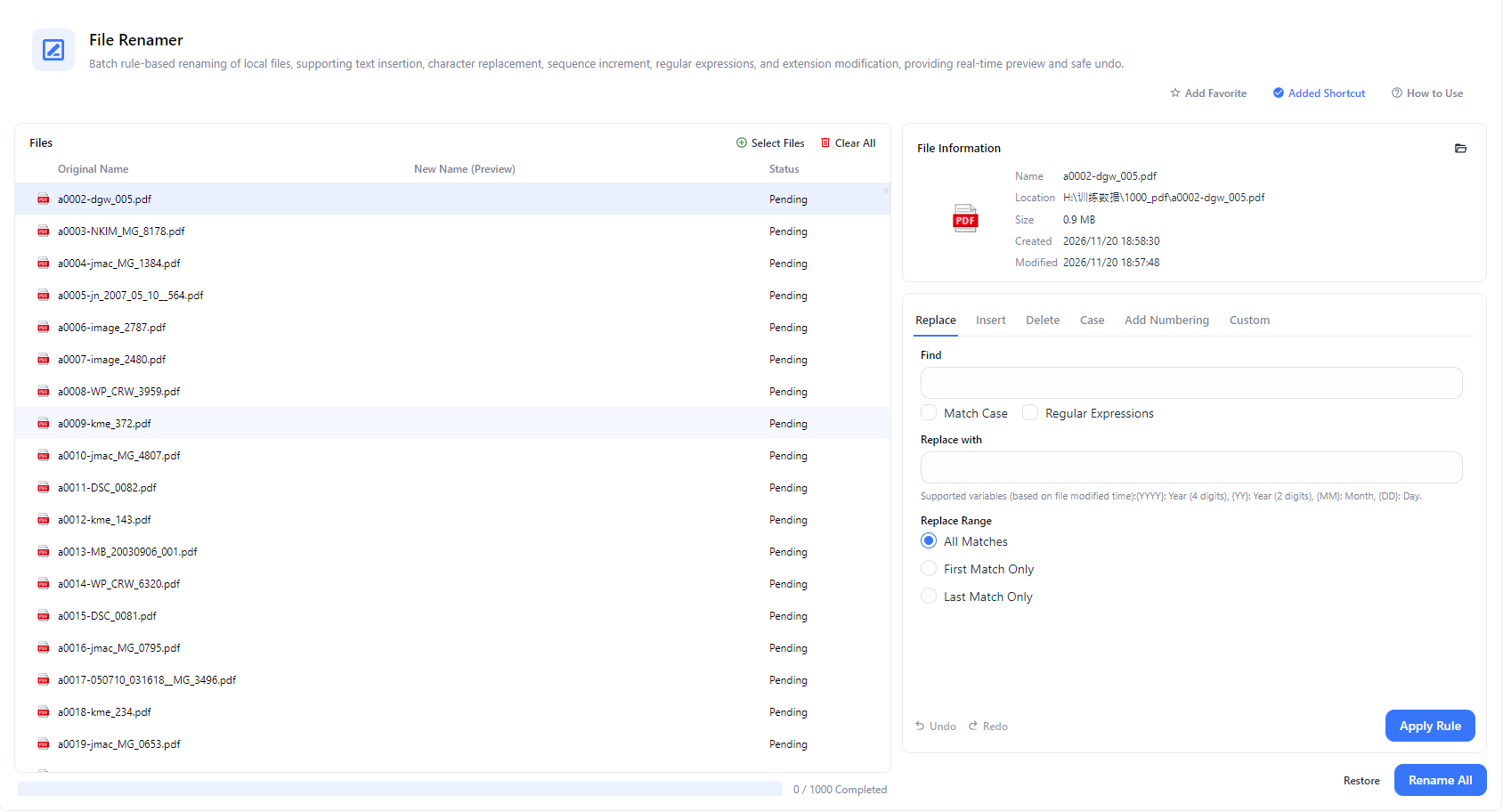
PurZeno File Renamer showing original and new file names with Replace, Insert, Delete, Case, Add Numbering and Custom rule tabs

Features

Key Features of File Renamer

Rename with Replace, Insert, Delete, Case and Numbering Rules

Use separate rule tabs for replacing text, inserting text, deleting characters, changing letter case and adding sequence numbers, so every renaming job has the right tool. You can also change file extensions.

Find and Replace with Regular Expressions

Search for plain text or turn on regular expressions to match patterns such as digits, dates or repeated characters. Match Case helps you target exactly the text you mean, and leaving the replacement blank removes the match.

Choose Which Matches to Change

Replace all matches in a file name, only the first match or only the last match, which is useful when the same text appears more than once.

Add Dates from the File's Modified Time

Use built-in variables such as year, month and day, based on each file's modified time, to put dates into file names automatically.

Preview New Names Before Renaming

Compare each original name with its new name in the file list. Nothing changes on your disk until you click Rename All, so you can check the result first.

Undo, Redo and Restore

Step back through your rules with Undo and Redo, or use Restore to return to the original names, so experimenting with rules is safe.

How it works

How to Use File Renamer

  1. Open File Renamer

    Open PurZeno and select File Renamer from the tool list.

  2. Add Files and Set a Renaming Rule

    Click Select Files to add the files you want to rename. Choose a rule tab such as Replace, Insert, Delete, Case or Add Numbering, enter your settings and click Apply Rule. Repeat with more rules if needed.

  3. Check the Preview and Rename

    Review the new names in the file list, use Undo or Restore if something looks wrong, then click Rename All to apply the new names to your files.

Use cases

When to Use File Renamer

Organizing Photos and Camera Files

Replace generic names such as IMG_0001 with meaningful names, or add numbering and dates, so photos sort correctly in any folder.

Cleaning Up Downloaded and Exported File Names

Remove unwanted text, brand names, duplicate words and stray characters from downloaded files, exported reports and scanned documents.

Applying a Consistent Naming Convention to Work Files

Add project prefixes or suffixes and standardize letter case across contracts, invoices and shared folders, so files are easy to find for the whole team.

Numbering Pages, Lessons and Sequences

Add sequence numbers to scanned pages, course videos, audio tracks and other file series, so they stay in the right order.

Good to know

File Renamer: Frequently Asked Questions

How do I rename multiple files at once?

Click Select Files to add your files, choose a rule tab such as Replace or Add Numbering, enter your settings and click Apply Rule. Check the new names in the list, then click Rename All.

Can I preview the new file names before renaming?

Yes. The file list shows each original name next to its new name, so you can review every change before you apply it to your files.

Can I undo a batch rename?

Yes. Use Undo and Redo to step through your rules, or Restore to return to the original names. Do this before clicking Rename All, because Rename All applies the names to the actual files.

Does File Renamer support regular expressions?

Yes. In the Replace tab, turn on Regular Expressions to match patterns. For example, searching for \d+ and leaving the replacement blank removes all numbers from the file names.

How do I add numbers to file names?

Choose the Add Numbering tab, set up the numbering you want and click Apply Rule. The sequence numbers appear in the preview before you rename.

How do I remove text from file names?

In the Replace tab, enter the text you want to remove in Find and leave the replacement blank, or use the Delete tab. Choose whether to remove all matches, the first match or the last match.

Are my files uploaded when I rename them?

No. PurZeno renames files locally on your computer. Your files and file names are not uploaded to PurZeno or any third-party server.

Make Everyday File Tasks Simpler

Get PDF, image and file tools in one private desktop app, and keep your files on your computer.

Download PurZeno