

Remove Metadata from Images and Documents
Clean images and Office and PDF documents, including Word, Excel, PowerPoint and PDF files, in one tool instead of using a different program for each file type.
Clean hidden personal and company information out of your files before you share them. Remove metadata such as authors, company names, document properties and EXIF locations from images and documents including PDF, Word, Excel and PowerPoint, in bulk, without changing the actual content.
Features
Clean images and Office and PDF documents, including Word, Excel, PowerPoint and PDF files, in one tool instead of using a different program for each file type.
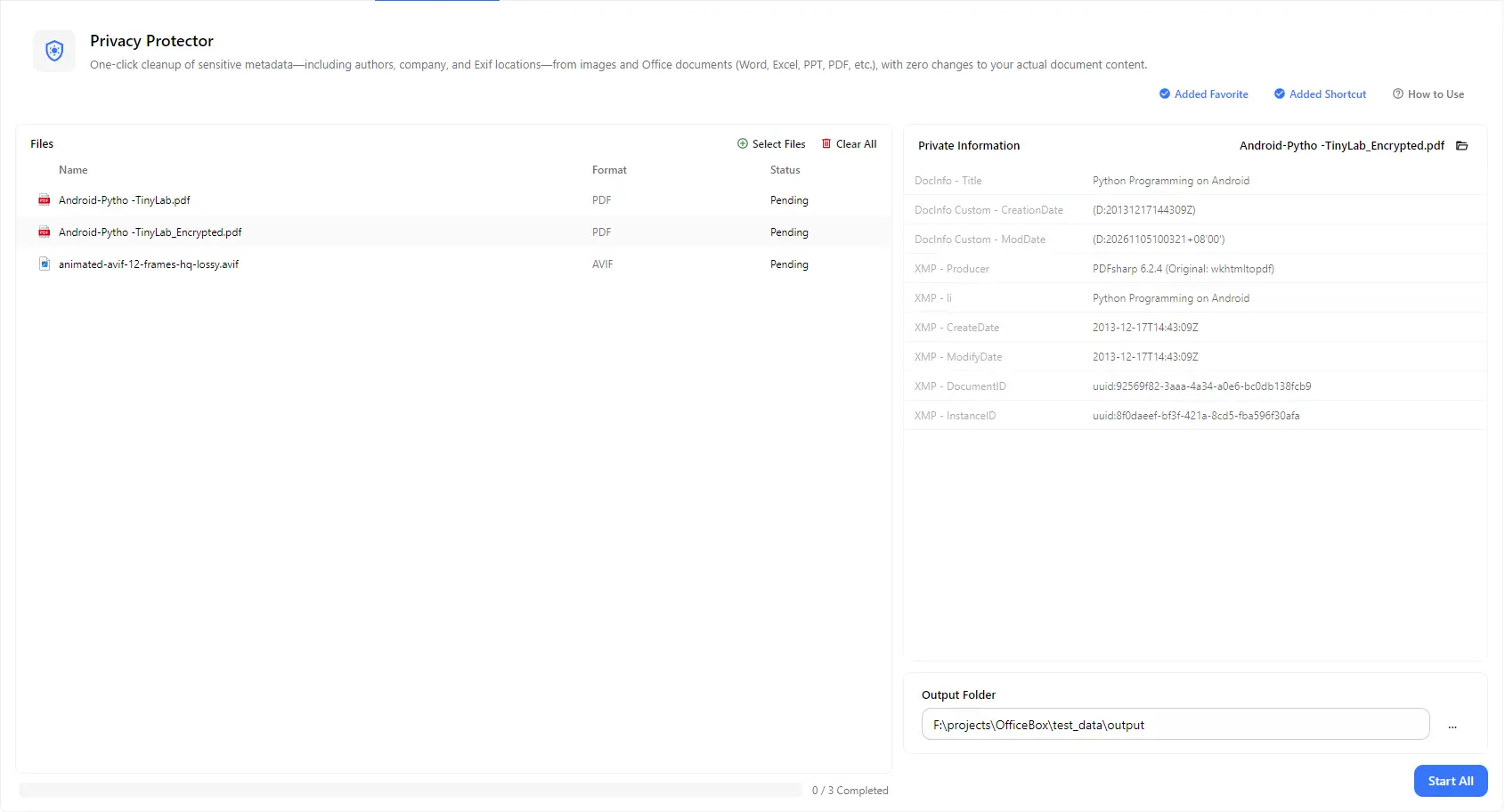
Select any file to view the private information stored in it, such as document title, creation and modification dates, producer software and other properties.
Strip details such as author names, company information and EXIF data including photo locations, so shared files reveal only what you intend.
Only the metadata is cleaned. The visible content of your document or image, such as the text, pictures and layout, is left unchanged.
Add multiple files of different types and process them all with a single Start All action, instead of cleaning them one by one.
Choose an output folder and find all cleaned files in one place, with an overall progress count to track the batch.
How it works
Open PurZeno and select File Privacy Protector from the tool list.
Click Select Files to add images and documents. Select a file in the list to see the private information stored in it.
Choose an output folder and click Start All. When all files show as completed, open the folder to find your cleaned files.
Use cases
Remove EXIF data such as GPS location from photos before posting them online, selling items or sending them to people you do not know.
Clean Word, Excel and PowerPoint files before sending them to clients, partners or the public, so internal names and company information are not exposed.
Remove properties such as the title, dates and producer software from PDFs before you publish or submit them.
Clean a batch of files before submitting them, archiving them or handing them to third parties, to reduce accidental disclosure of personal or company data.
Good to know
Metadata is information stored inside a file in addition to its visible content, such as the author, company, creation and modification dates, software used and, for photos, the location where they were taken. Removing it helps prevent accidental disclosure when you share files.
Click Select Files to add your files, check the private information shown for each one, choose an output folder and click Start All. The cleaned copies are saved to that folder.
Add your photos, choose an output folder and click Start All. The cleaned images are saved without their EXIF metadata, including location information when present.
You can clean images and documents including PDF, Word, Excel and PowerPoint files, and you can mix different types in one batch.
No. Only the metadata is removed, and the actual content of the file stays unchanged. Metadata cleaning does not review the content itself, so check the visible text and images yourself before sharing sensitive files.
No. PurZeno cleans files locally on your computer. Your files and their metadata are not uploaded to PurZeno or any third-party server.
Get PDF, image and file tools in one private desktop app, and keep your files on your computer.
Download PurZeno