

Add Text or Image Watermarks
Use a text watermark such as a copyright notice or your name, or use an image watermark such as a logo or stamp, to mark your pictures.
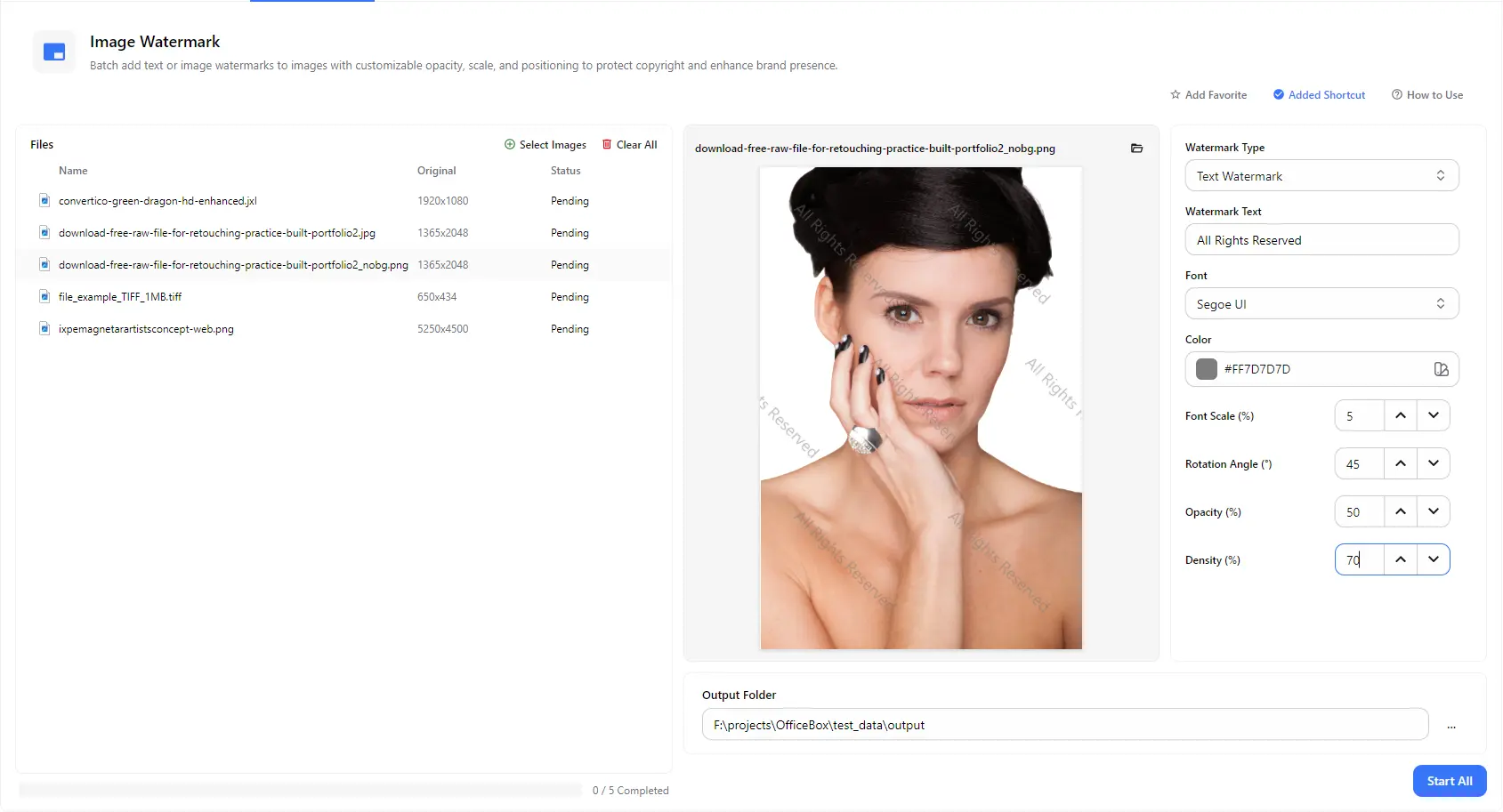
Protect your photos and strengthen your brand by adding a text or image watermark to one picture or a whole batch. Customize the text, font, color, size, angle, opacity and density, check the result in the live preview, and save the watermarked images to the folder you choose.
Features
Use a text watermark such as a copyright notice or your name, or use an image watermark such as a logo or stamp, to mark your pictures.
Type your own watermark text, choose a font and color, and set the font scale so the watermark is readable without overpowering the picture.
Rotate the watermark to any angle, make it more subtle or more visible with opacity, and set how densely it repeats across the image, from a single mark to full coverage.
Add many images and apply the same watermark settings to all of them with a single Start All action, instead of editing each image separately.
See the watermark on a real image in the preview panel and select different images in the list to check how it looks on each one.
Watermark popular formats such as JPG, PNG, WebP and TIFF, then choose an output folder to find all watermarked images in one place.
How it works
Open PurZeno and select Image Watermark from the tool list.
Click Select Images to add one or more files. Choose a text or image watermark, then adjust the text, font, color, scale, angle, opacity and density while checking the preview.
Choose an output folder and click Start All. When all files show as completed, open the folder to find your watermarked images.
Use cases
Overlay your name or studio on proofs, portfolio samples and previews before sharing them with clients or posting them online.
Add a logo or shop name to product photos and promotional images, so your brand stays visible wherever they are shared.
Apply a text watermark such as Sample or Confidential to screenshots, drawings and documents saved as images.
Mark blog images, course materials and social media pictures with a copyright notice to discourage unauthorized reuse.
Good to know
Click Select Images to add your photo, choose a text or image watermark, adjust the settings while checking the preview, select an output folder and click Start All.
Yes. Add as many images as you need and apply the same watermark to all of them in one batch. Each file shows its own status, and the progress bar tells you how many files are completed.
Yes. Besides text watermarks, you can use an image watermark such as a logo or stamp to brand your pictures.
Lower the opacity, reduce the font scale or choose a lighter color. A lower density shows fewer repeats, while a diagonal angle keeps the picture readable underneath.
Density controls how closely the watermark repeats across the image. A higher value covers more of the picture, which makes the watermark harder to crop out.
No. PurZeno adds watermarks locally on your computer. Your images are not uploaded to PurZeno or any third-party server.
The watermarked images are saved to the output folder you choose, so your original files stay where they are.
Get PDF, image and file tools in one private desktop app, and keep your files on your computer.
Download PurZeno