

AI Background Removal with Precise Cutouts
Detect the subject automatically and remove the background in one step. It works well for people and stamps, as well as everyday photos.
Cut out people, products and stamps with AI-powered precision. Remove the background to get a transparent image, or replace it with a solid color or another picture. Fine-tune edge softness for hair and fine details, process many images in one batch and save them as PNG, WebP or JPG.
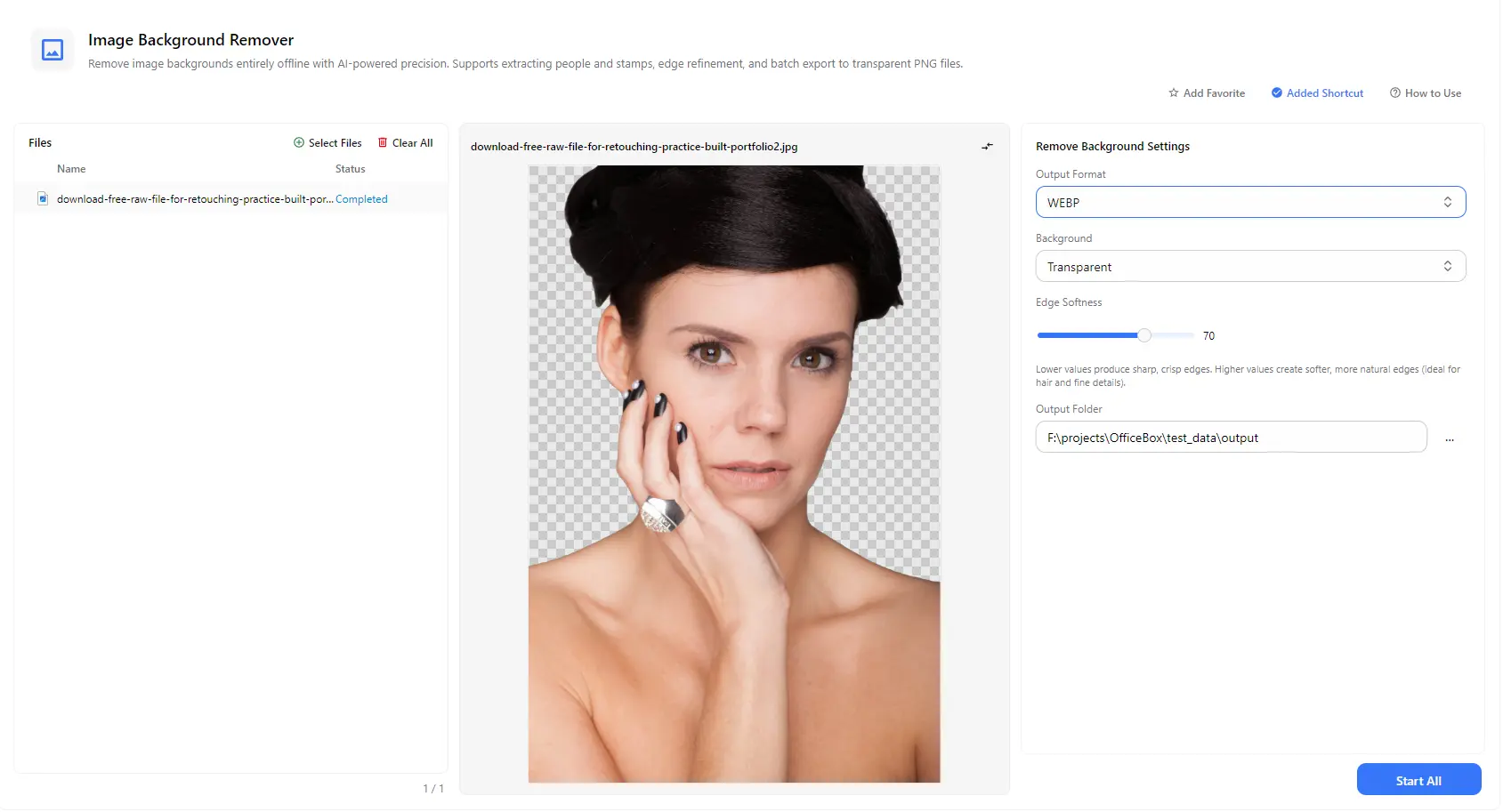
Features
Detect the subject automatically and remove the background in one step. It works well for people and stamps, as well as everyday photos.
Save your cutout with a transparent background as PNG or WebP, ready to place on websites, slides, designs and product pages.
Instead of leaving the background transparent, put a solid color or a background picture behind your subject.
Use the edge softness slider to choose between sharp, crisp edges and softer, more natural edges, which is ideal for hair and fine details.
Choose the output format that fits your use. PNG and WebP keep a transparent background, while JPG cannot store transparency and is used with a solid color or image background.
Add multiple images and process them with a single Start All action. Check the result for each image in the preview, then choose where the finished files are saved.
How it works
Open PurZeno and select Image Background Remover from the tool list.
Click Select Files to add one or more images. Choose the output format, set the background to transparent, a color or an image, and adjust the edge softness while checking the preview.
Choose an output folder and click Start All. When all files show as completed, open the folder to find your finished images.
Use cases
Remove cluttered backgrounds from product pictures to create clean, consistent images for listings, catalogs and marketplaces.
Remove the background from a portrait and replace it with a plain color or another picture for profiles, applications and team pages.
Cut a stamp out of a scan or photo as a transparent PNG so you can place it on other documents.
Isolate people and objects as transparent images and drop them into posters, presentations, banners and thumbnails.
Good to know
Add your image with Select Files, choose Transparent as the background, select an output format, choose an output folder and click Start All.
Set the background to Transparent and export as PNG or WebP. Both formats can store a transparent background.
JPG does not support transparency, so a JPG file cannot have a transparent background. To keep it transparent, export as PNG or WebP. When you export as JPG, use a solid color or background image.
Yes. Instead of Transparent, choose a color or a background image to place behind your subject.
Lower values produce sharp, crisp edges. Higher values create softer, more natural edges, which is ideal for hair and fine details.
Yes. Add as many images as you need and process them together in one batch. Each file shows its own status.
The first time you use Image Background Remover, PurZeno downloads the model for this task. You generally won't need to download it again, unless the model is updated or needs to be downloaded again. These are small task-specific models, usually from a few megabytes to around a hundred megabytes.
No. After the model is downloaded, it runs locally on your computer. Your images are not uploaded to any server.
The AI model runs locally, so speed depends on your computer's hardware, mainly the CPU and memory. Depending on your device, you may notice different levels of processing delay.
Get PDF, image and file tools in one private desktop app, and keep your files on your computer.
Download PurZeno