

Choose Your Compression Level
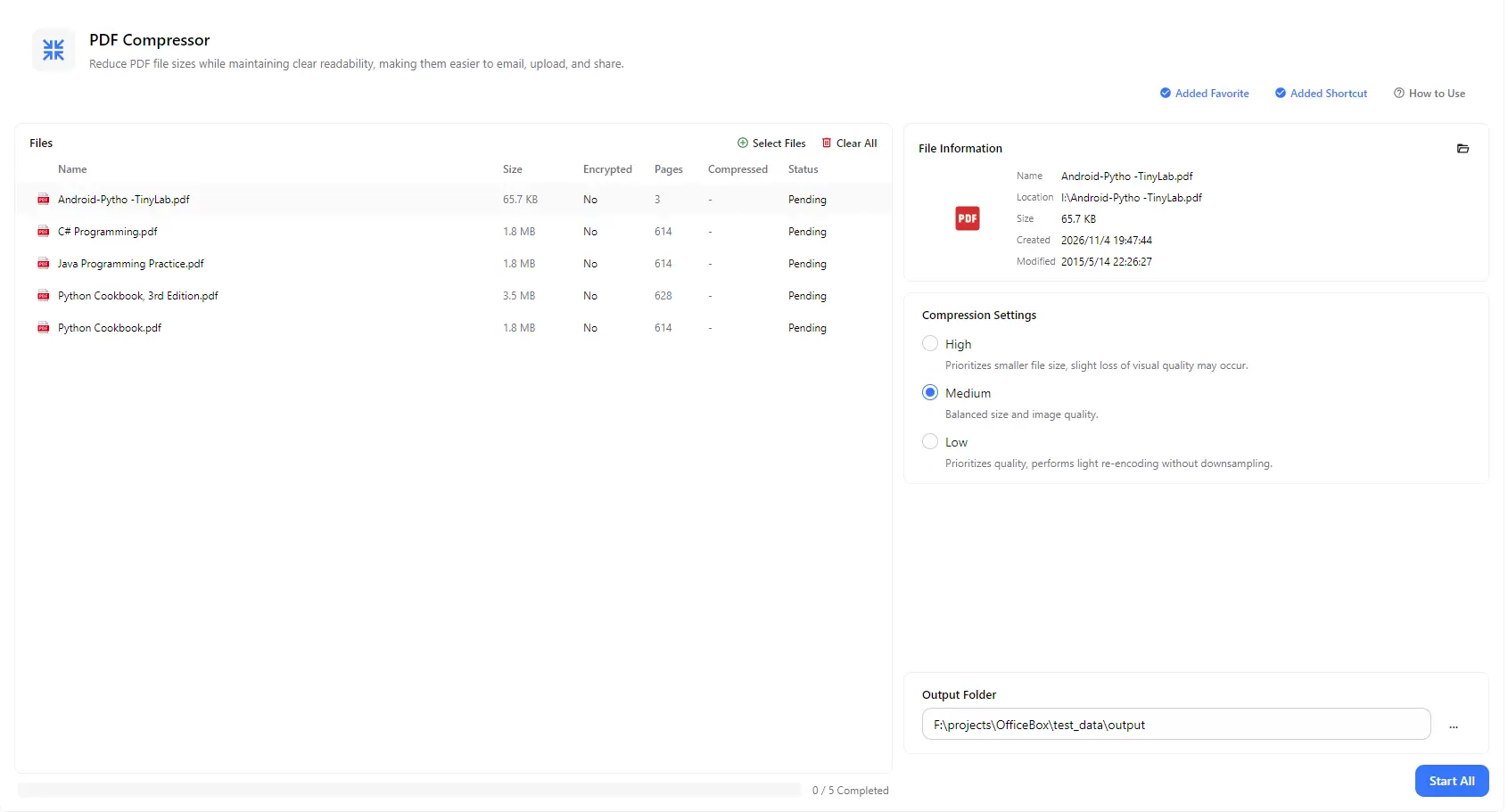
Choose High for stronger compression and smaller files, Medium for a balance between file size and image quality, or Low for light re-encoding without image downsampling.
PurZeno's PDF Compressor helps you reduce PDF file sizes so documents are easier to email, submit online and store. Choose High, Medium or Low compression, process multiple PDFs in one batch, and save the compressed files to any folder on your computer.
Features
Choose High for stronger compression and smaller files, Medium for a balance between file size and image quality, or Low for light re-encoding without image downsampling.
Add multiple PDF documents and process them together with a single Start All action, instead of compressing files one at a time.
Check each file's size, page count and encryption status in the file list. Open the details panel to see its name, location and dates.
See the compressed size next to the original after processing. Each PDF shows its own status, and an overall progress count helps you track the batch.
Select where your compressed PDFs are saved, so the results are easy to find and organize when processing finishes.
How it works
Open PurZeno and select PDF Compressor from the tool list.
Add one PDF or multiple documents, then select High, Medium or Low compression according to your needs.
Choose an output folder and select Start All. Find your compressed PDFs in that folder when the process finishes.
Use cases
When reports, contracts or other documents are too large to attach to an email or submit through an online form, compress them to make sharing and submission easier.
Scanned documents, illustrated reports and image-heavy manuals often contain large amounts of image data. Choose a suitable compression level to reduce their size while considering image quality.
Compress a batch of completed documents before archiving them to reduce the space PDF collections take up on your computer or backup drive.
Good to know
No. PurZeno processes PDF files locally on your computer. Your documents are not uploaded to PurZeno or any third-party server.
PDF compression itself does not require an internet connection. Signing in and verifying your PurZeno license do require one.
Low compression re-encodes lightly and does not downsample images, so quality stays closest to the original, but it usually saves less space. Medium and High reduce size further and may lower image quality. Start with Medium and compare the results.
It depends on the content and how well the file is already compressed. PDFs with large images or scanned pages usually have more room to shrink, while text-based PDFs may change very little.
Get PDF, image and file tools in one private desktop app, and keep your files on your computer.
Download PurZeno