

Compress JPG, PNG, WebP, GIF, TIFF, AVIF and More
Work with the formats you actually use: JPG, JPEG, PNG, APNG, WebP, GIF, TIFF, TIF, AVIF and JXL. Mixed formats can be compressed in the same batch.
Reduce image file sizes while keeping good visual quality, so photos and graphics are easier to email, upload and share. Add one image or a whole batch, choose a compression level or set your own value, compare original and compressed sizes, and save the results to the folder you choose.
Features
Work with the formats you actually use: JPG, JPEG, PNG, APNG, WebP, GIF, TIFF, TIF, AVIF and JXL. Mixed formats can be compressed in the same batch.
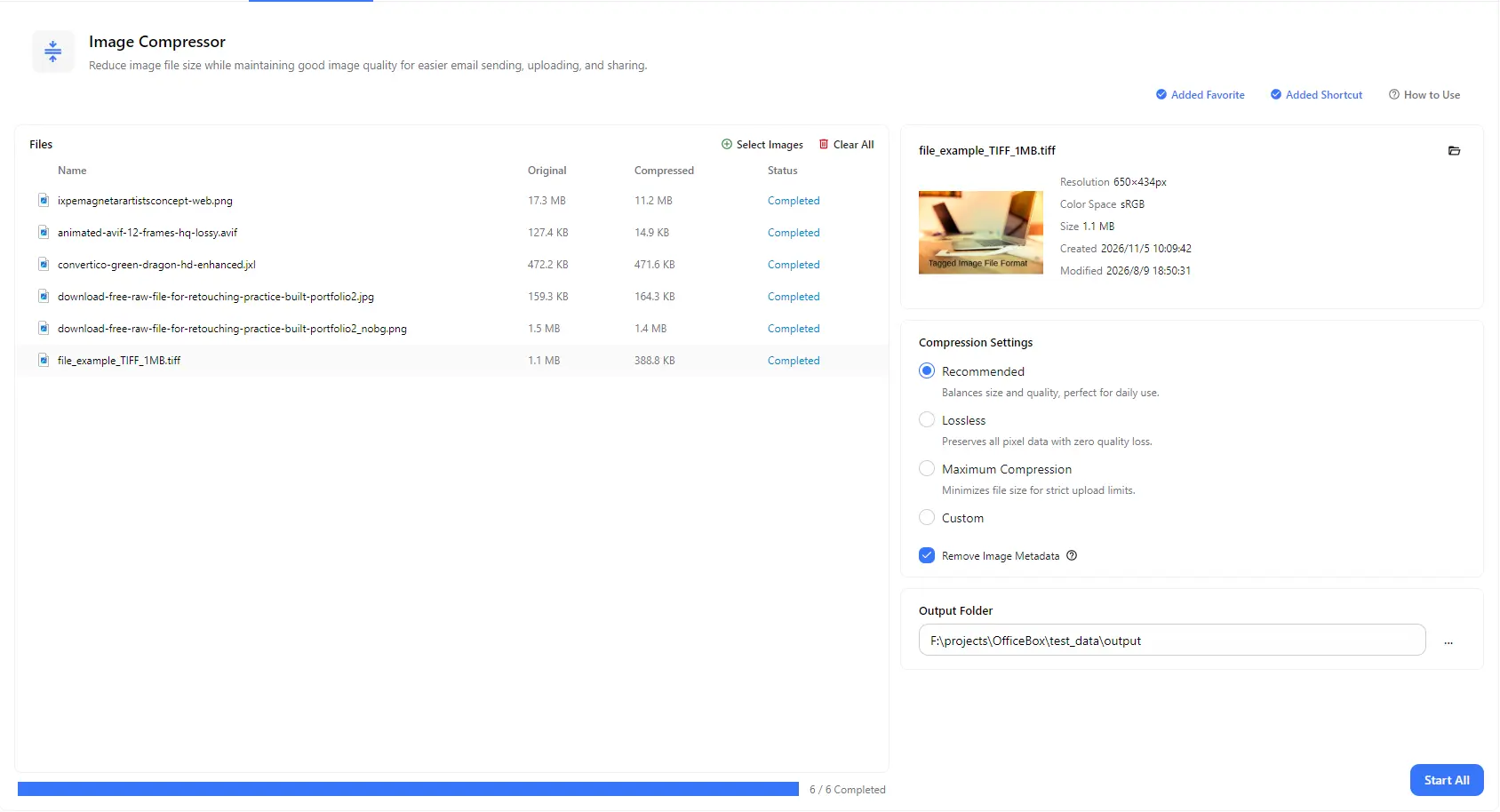
Use Recommended for a balance of size and quality in daily use, Lossless to preserve every pixel, or Maximum Compression for the smallest files when upload limits are strict.
Take control of the balance between image size and quality by setting your own compression value when the presets do not fit your needs.
Add many images at once and process them together with a single Start All action, instead of compressing files one at a time.
See each image's original size next to its compressed size, along with its status, so you can quickly check how much space you saved.
Strip embedded metadata, such as camera details and location data where present, to reduce file size slightly and protect your privacy before sharing photos.
Select any image to view its thumbnail, resolution, color space, size and dates, then pick the folder where the compressed images are saved.
How it works
Open PurZeno and select Image Compressor from the tool list.
Click Select Images to add one or more files. Choose Recommended, Lossless, Maximum Compression or Custom, and decide whether to remove image metadata.
Choose an output folder and click Start All. When all files show as completed, compare the sizes and find your compressed images in the folder.
Use cases
Shrink photos and screenshots so they fit within email attachment limits and send quickly through chat apps, without making them look noticeably worse.
Use Maximum Compression to get images under the strict file size limits of application forms, online portals, forums and e-commerce listings.
Compress product photos, banners and blog images to improve page loading speed and reduce bandwidth, in formats such as JPG, PNG, WebP and AVIF.
Compress large batches of photos and graphics before archiving them, to reduce the space they take up on your computer, external drive or cloud storage.
Good to know
Choose Lossless to preserve all pixel data with no quality loss, although the size reduction is usually smaller. For a good balance of size and quality in daily use, start with Recommended and compare the results.
You can compress JPG, JPEG, PNG, APNG, WebP, GIF, TIFF, TIF, AVIF and JXL images, including several different formats in one batch.
Yes. Add as many images as you need and compress them all with Start All. Each file shows its original and compressed sizes and its own status, and the progress bar tells you how many files are completed.
Use Recommended for everyday sharing, Lossless when quality must stay identical, and Maximum Compression when you must meet a strict upload limit. Choose Custom if you want to set the compression value yourself.
It deletes metadata stored inside the image, such as camera information and location data when present. This can reduce file size a little and helps protect your privacy when you share photos.
This happens when the image already meets the selected compression level. If you want to reduce the size further, choose a higher compression level.
No. PurZeno compresses images locally on your computer. Your images are not uploaded to PurZeno or any third-party server.
Get PDF, image and file tools in one private desktop app, and keep your files on your computer.
Download PurZeno