

Crop Freely or with Preset Aspect Ratios
Draw any crop area in Freeform mode, or choose a preset aspect ratio so the crop keeps the proportions you need for profile pictures, posts, banners and prints.
Crop images exactly the way you want. Drag the crop area or enter precise values, work freely or lock a preset aspect ratio, preview the result, and apply the same crop to a whole batch of images before saving them to the folder you choose.
Features
Draw any crop area in Freeform mode, or choose a preset aspect ratio so the crop keeps the proportions you need for profile pictures, posts, banners and prints.
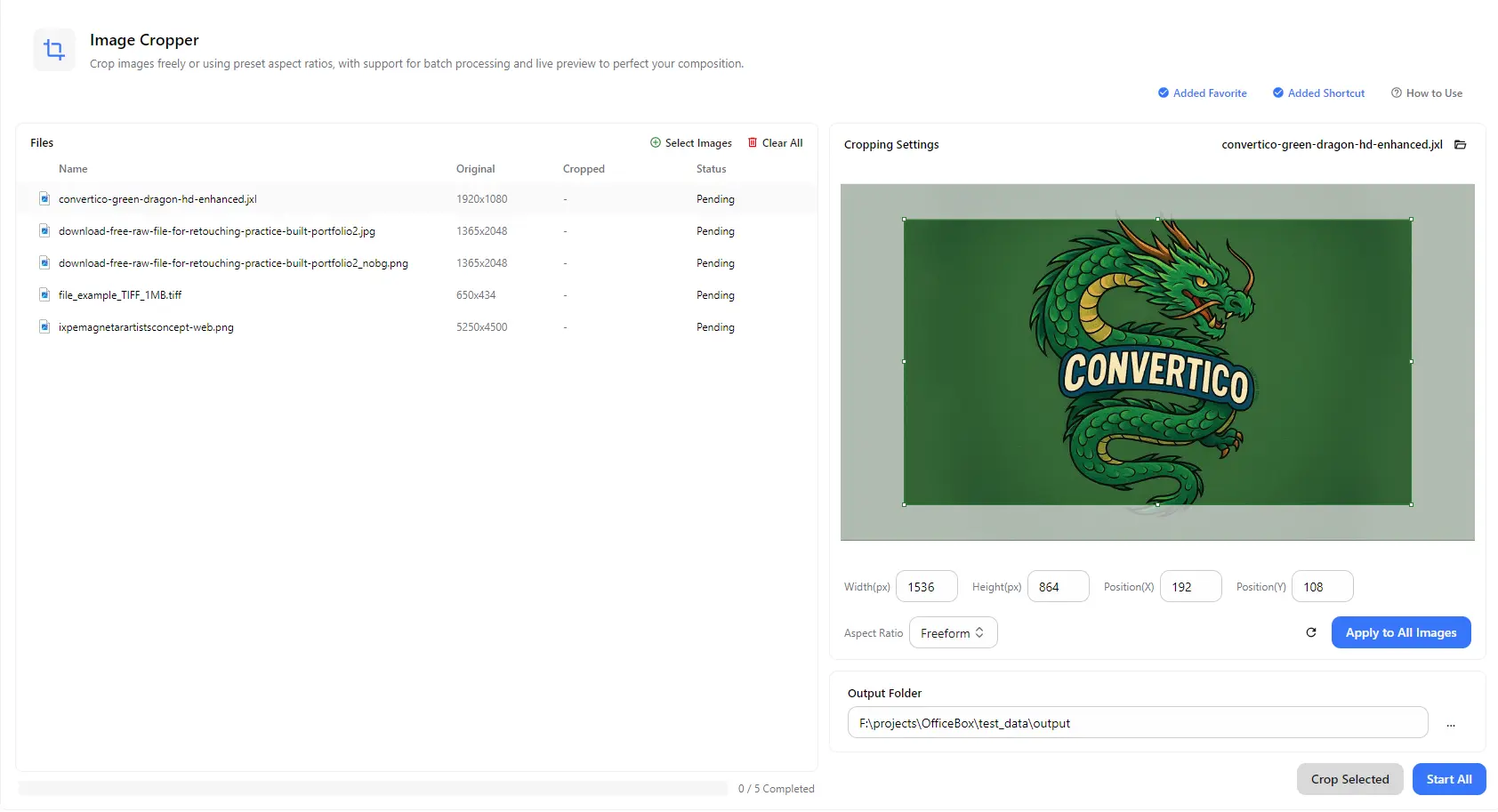
Type the crop width and height in pixels and the X and Y position of the crop area, for precise results that you can repeat across many images.
See the crop area on the image with adjustable handles, and fine-tune the composition before you process anything. A reset button returns the crop area to its starting point.
Add many images and use Apply to All Images to use the same crop settings for the whole list, or use Crop Selected to process only the image you are working on.
Crop JPG, JPEG, PNG, WebP, GIF, APNG, AVIF, TIFF, TIF, BMP, JXL, TGA, EXR, HDR and JP2 images, including several formats in the same batch.
The file list shows each image's original dimensions next to its cropped dimensions and status. Choose an output folder to save all results in one place.
How it works
Open PurZeno and select Image Cropper from the tool list.
Click Select Images to add one or more files. Select an image, then drag the crop area, enter exact values or choose an aspect ratio. Use Apply to All Images if every image needs the same crop.
Choose an output folder and click Start All to crop every image, or click Crop Selected to process only the selected one. Find your cropped images in the folder when processing finishes.
Use cases
Crop portraits to a consistent shape and framing for accounts, ID photos, team pages and directories.
Use preset aspect ratios to crop photos to the proportions required by posts, cover images, thumbnails and website banners.
Trim distracting areas, scanner borders and empty margins from photos and screenshots to focus on the subject.
Apply the same crop to a batch of product images so catalogs, listings and galleries have uniform framing.
Good to know
Select the image, enter the crop width and height in pixels, adjust the position if needed, choose an output folder and click Start All or Crop Selected.
Choose a preset from the Aspect Ratio list. The crop area then keeps those proportions while you move and resize it. Choose Freeform to crop without a fixed ratio.
Yes. Add as many images as you need and use Apply to All Images to use the same crop settings for all of them. Each file shows its original and cropped dimensions and its own status.
Crop Selected processes only the image you currently have selected. Start All processes every image in the list.
Cropping removes the parts outside the crop area and keeps the remaining pixels at their original resolution, so the cropped area is not enlarged or stretched.
No. PurZeno crops images locally on your computer. Your images are not uploaded to PurZeno or any third-party server.
Get PDF, image and file tools in one private desktop app, and keep your files on your computer.
Download PurZeno