

Resize to Exact Dimensions
Enter a width, a height or both in pixels. Set only one value to keep the original aspect ratio, or set both to force the image to an exact size.
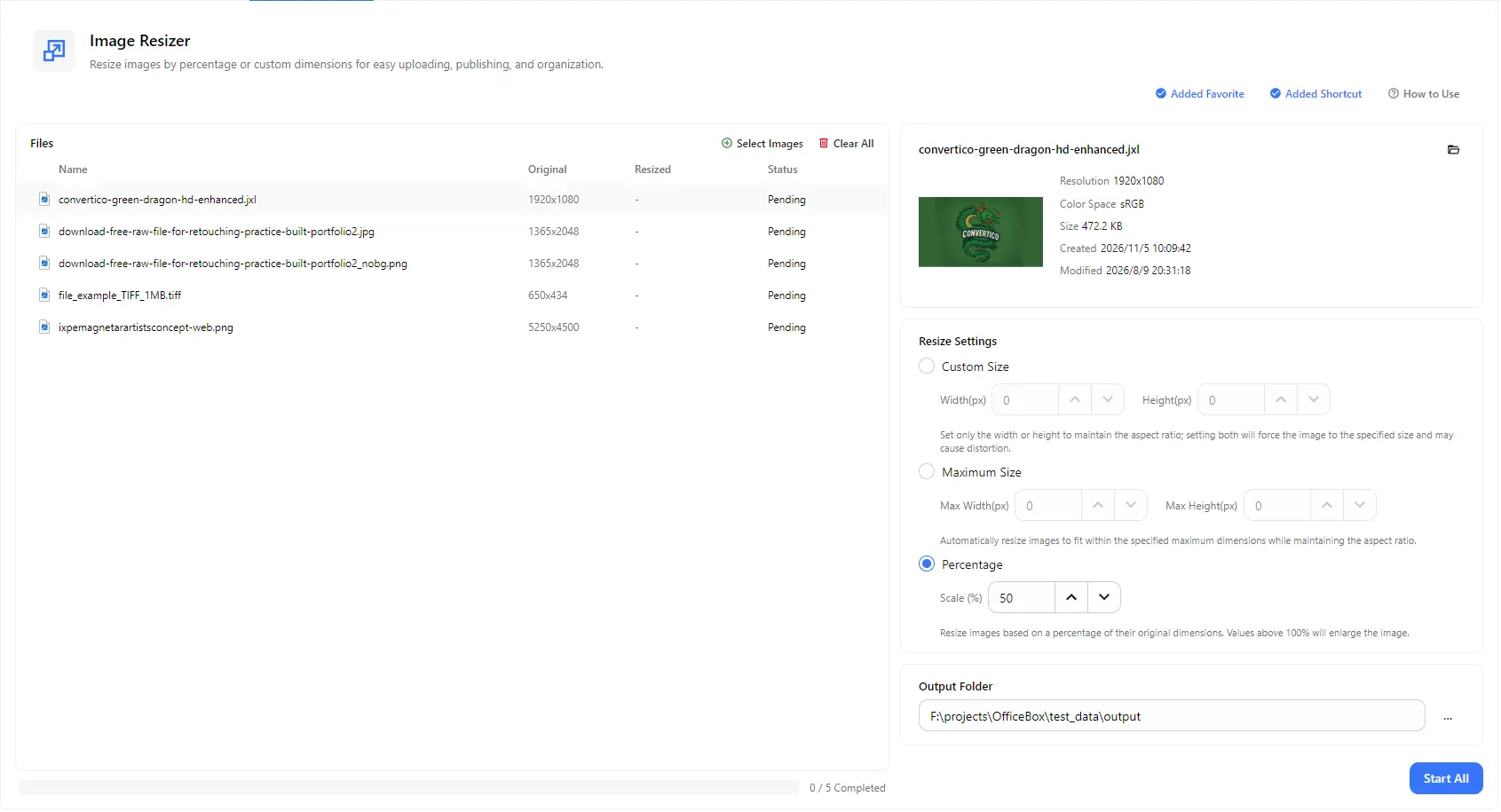
Resize images to the dimensions you need for uploading, publishing and organizing. Set an exact width and height, fit images within a maximum size, or scale them by percentage. Process a whole batch at once and see the original and resized dimensions side by side.
Features
Enter a width, a height or both in pixels. Set only one value to keep the original aspect ratio, or set both to force the image to an exact size.
Set a maximum width and height and let each image shrink to fit inside those limits while keeping its proportions, which is ideal for mixed batches of portrait and landscape photos.
Resize every image by the same percentage of its original dimensions, such as 50% to halve the width and height. Values above 100% enlarge the image.
Add many images and resize them all with a single Start All action, instead of opening and exporting each file separately.
Resize JPG, JPEG, PNG, WebP, GIF, APNG, AVIF, TIFF, TIF, BMP, JXL, TGA, EXR, HDR and JP2 images, including several formats in the same batch.
The file list shows each image's original and resized dimensions. Select an image to view its resolution, color space, size and dates, then choose where to save the results.
How it works
Open PurZeno and select Image Resizer from the tool list.
Click Select Images to add one or more files. Choose Custom Size, Maximum Size or Percentage, then enter your values.
Choose an output folder and click Start All. When all files show as completed, open the folder to find your resized images.
Use cases
Resize photos to the width your page or product listing needs, so images load faster and display consistently.
Use a maximum size to bring large photos within the pixel limits of application forms, profile pictures, marketplaces and social media.
Scale a batch of high-resolution photos down by 50% or more to get lighter files that are easier to send and share.
Resize a folder of mixed images to the same width or height so that galleries, catalogs and slides look consistent.
Good to know
Add your images, choose Custom Size, enter the width and height in pixels, select an output folder and click Start All. Enter only the width or only the height to keep the original aspect ratio.
Set only the width or only the height in Custom Size, or use Maximum Size or Percentage. These options keep the original proportions. Setting both width and height in Custom Size forces the exact size and can distort the image.
Custom Size sets the dimensions you enter. Maximum Size sets the largest width and height allowed, and resizes each image to fit inside those limits while keeping its aspect ratio, so different shapes in one batch are all handled correctly.
Yes. Add as many images as you need and apply the same resize setting to all of them in one batch. Each file shows its original and resized dimensions and its own status.
Usually yes, because smaller dimensions mean fewer pixels to store. If you also need to reduce the file size further, you can compress the resized images with the Image Compressor.
No. Scaling above 100% makes the image larger, but it cannot add detail that is not in the original, so enlarged images may look softer.
No. PurZeno resizes images locally on your computer. Your images are not uploaded to PurZeno or any third-party server.
Get PDF, image and file tools in one private desktop app, and keep your files on your computer.
Download PurZeno