

Combine Images into One PDF
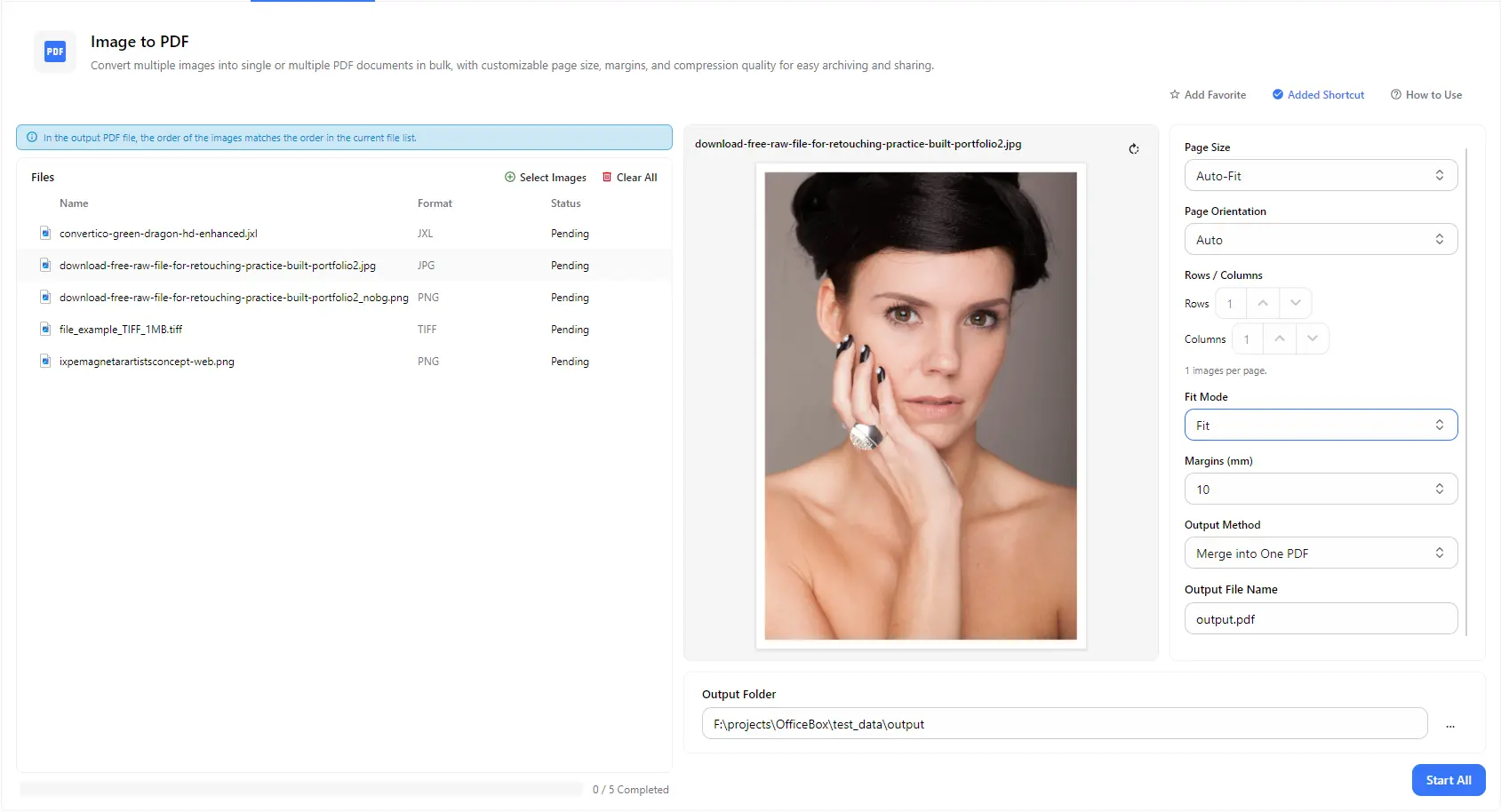
Merge many images into a single PDF. The pages follow the order of the image list, so you can arrange your pictures the way you want them to appear.
Turn your images into PDF documents in bulk. Combine many pictures into a single PDF or create a separate PDF for each one, choose the page size, orientation, margins and layout, preview the result, and save the files to the folder you choose.
Features
Merge many images into a single PDF. The pages follow the order of the image list, so you can arrange your pictures the way you want them to appear.
Choose the separate output option to convert every image into its own PDF file, for when each picture needs to stay an individual document.
Select Auto-Fit, A0 to A6 or Letter for the page size, and set the orientation to Auto or your preferred direction to suit printing, archiving and sharing.
Set the page margins in millimeters and choose how each image fits on the page, so pictures are neither cut off nor left floating in the wrong place.
Set the number of rows and columns to put several images on a single page, which is useful for contact sheets, photo grids and compact handouts.
Check how an image will look on the page in the preview panel, set the output file name, and choose the folder where your PDFs are saved.
How it works
Open PurZeno and select Image to PDF from the tool list.
Click Select Images to add your pictures and arrange them in the order you want. Choose the page size, orientation, layout, fit mode and margins, then pick Merge into One PDF or separate PDFs.
Enter an output file name if needed, choose an output folder and click Start All. Find your PDF files in that folder when the process finishes.
Use cases
Merge scans, photographed documents, receipts and forms into a single PDF that is easy to send, submit or archive.
Convert ID photos, certificates and supporting documents into PDF files that meet the upload requirements of portals and forms.
Put several pictures on each page with rows and columns, or give each image its own page, for portfolios, catalogs and printable handouts.
Convert a folder of images into separate PDFs so every picture can be stored, named and shared as its own document.
Good to know
Add your images, arrange them in the order you want, choose Merge into One PDF as the output method, enter a file name, select an output folder and click Start All.
The images appear in the PDF in the same order as the current file list, so arrange the list before you convert.
Yes. Choose the separate output method instead of Merge into One PDF, and each image is converted into its own PDF file.
You can choose Auto-Fit, A0 to A6 or Letter. Choose a standard size such as A4 for printing and sharing, or Auto-Fit to let the page follow the image.
Yes. Set the number of rows and columns to place several images on the same page. With one row and one column, each image gets its own page.
No. PurZeno converts images locally on your computer. Your images are not uploaded to PurZeno or any third-party server.
Get PDF, image and file tools in one private desktop app, and keep your files on your computer.
Download PurZeno