

Extract Images from a PDF in One Click
Save the images embedded in a PDF as standalone files that you can edit, reuse in designs or add to other documents, without taking screenshots of pages.
Pull the images out of your PDF documents and save them as separate files. Add one PDF or many, see how many images each file contains, choose PNG, JPG or WebP, decide how duplicates and file names are handled, and export everything to the folder you choose.
Features
Save the images embedded in a PDF as standalone files that you can edit, reuse in designs or add to other documents, without taking screenshots of pages.
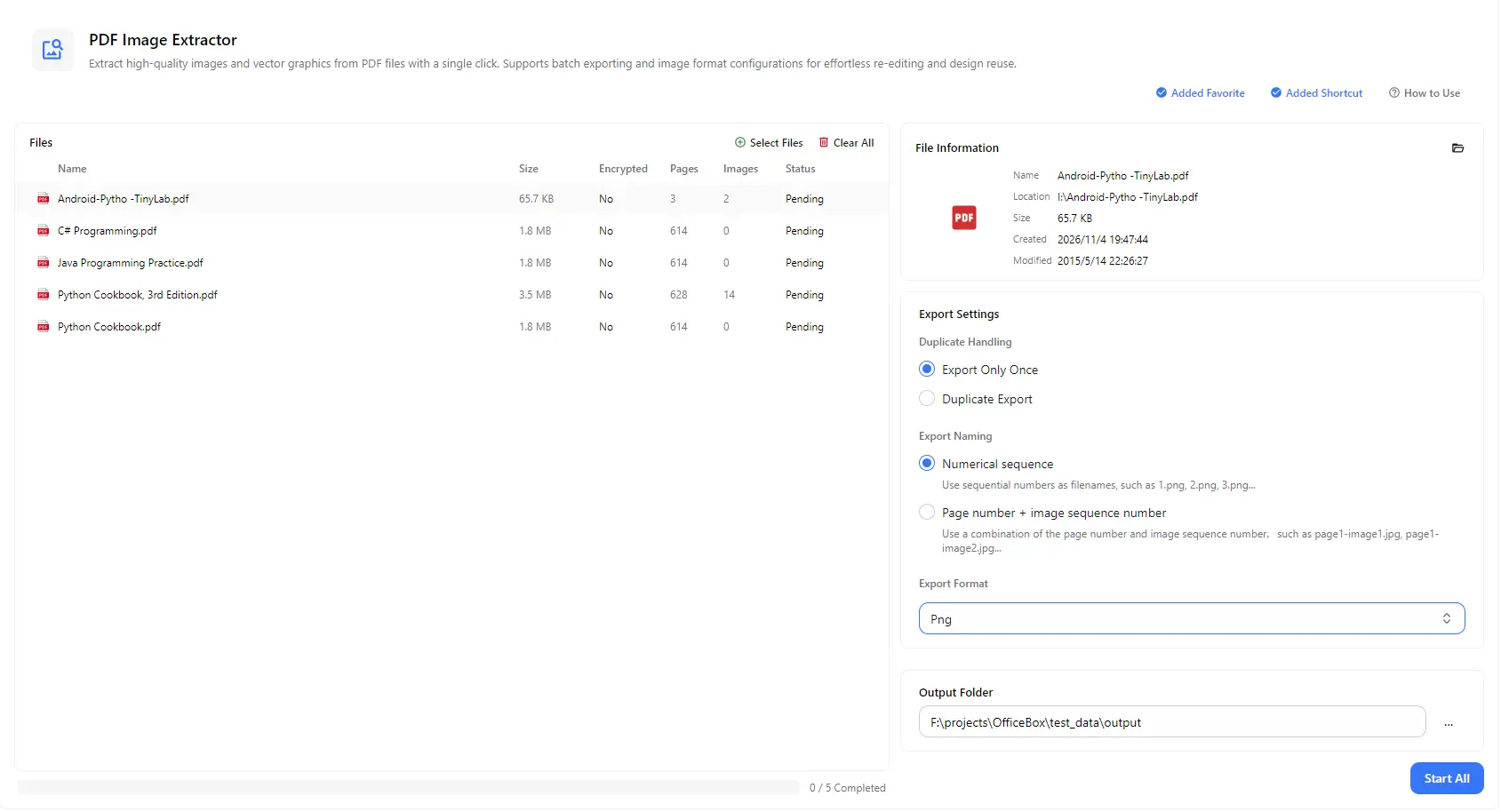
Add several PDF files and extract images from all of them with a single Start All action, instead of processing each document one by one.
The file list shows each PDF's size, page count, encryption status and number of images, so you can tell at a glance which documents contain pictures. Select a file to view its name, location and dates.
Choose PNG for lossless quality and transparency, JPG for smaller photos that are easy to share, or WebP for compact web-ready images.
Many PDFs reuse the same logo or background on every page. Choose Export Only Once to save each repeated image a single time, or Duplicate Export to save every occurrence.
Name files with a simple numerical sequence like 1.png, 2.png, 3.png, or combine the page number with the image number, such as page1-image1.jpg, to see exactly where each image came from.
How it works
Open PurZeno and select PDF Image Extractor from the tool list.
Click Select Files to add one or more PDFs. Choose how to handle duplicate images, how to name the files, and the export format (PNG, JPG or WebP).
Choose an output folder and click Start All. When all files show as completed, open the folder to find your extracted images.
Use cases
Extract photos, diagrams and illustrations from PDF reports, brochures and slide handouts so you can reuse them in new documents, websites or designs.
Pull product images and technical figures out of catalogs, datasheets and user manuals for listings, documentation or training materials.
Extract the page images stored inside scanned documents so you can edit, crop or clean them up in an image editor.
Save charts, figures and illustrations from ebooks, papers and study materials to reference them or use them in your own notes and presentations.
Good to know
Click Select Files to add your PDF, choose an export format and naming style, select an output folder and click Start All. The images are saved to that folder as separate files.
Yes. Add as many PDFs as you need and extract their images in one batch. Each file shows its own status, and the progress bar tells you how many files are completed.
PDF Image Extractor saves the individual pictures embedded in a PDF, such as photos and logos. PDF to Image converts whole pages into image files, including their text and layout.
Use PNG for the highest quality and images with transparency, JPG for smaller files that are easy to share, and WebP for compact images on websites.
The image count shows how many embedded images were found in the file. Text-only PDFs have none, and some documents draw graphics as vector shapes or text instead of placing picture files inside the PDF.
No. PurZeno processes PDF files locally on your computer. Your documents are not uploaded to PurZeno or any third-party server.
Get PDF, image and file tools in one private desktop app, and keep your files on your computer.
Download PurZeno