

Merge Multiple PDFs into One
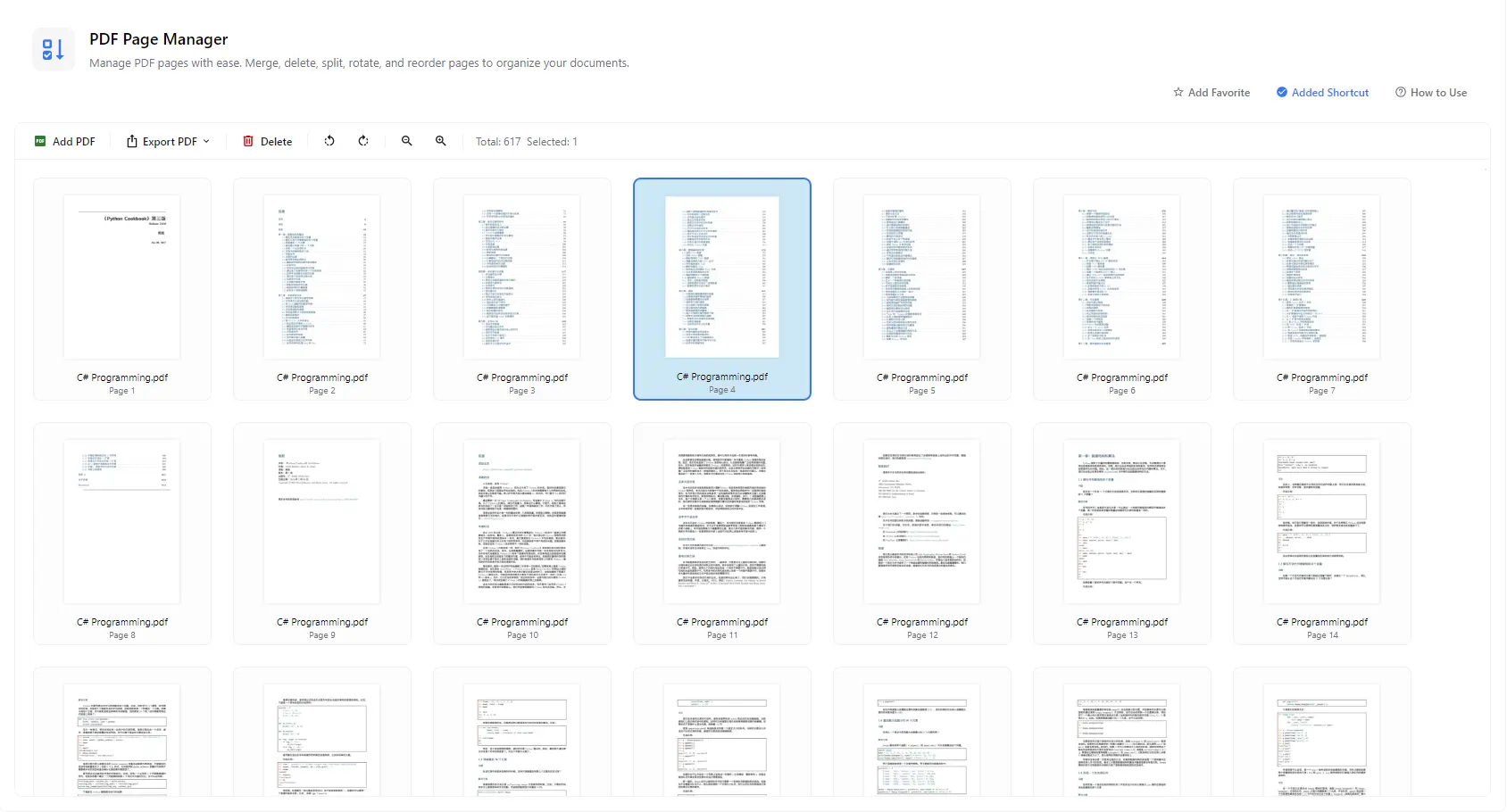
Add several PDF files and see all their pages together in one thumbnail view. Arrange them the way you want and export a single combined PDF.
Organize your PDF documents page by page. Combine pages from multiple PDFs, delete unwanted pages, rotate and reorder them on a visual thumbnail view, then export the result as a single PDF or as separate one-page PDF files.
Features
Add several PDF files and see all their pages together in one thumbnail view. Arrange them the way you want and export a single combined PDF.
Move pages into the right sequence so reports, contracts and scanned documents read in the order you need, without recreating the file.
Select blank, duplicate or irrelevant pages and remove them with the Delete button. The page counter shows the total and the number of selected pages.
Fix sideways or upside-down scans by rotating pages left or right before you export.
Export every page as its own PDF file when you need to separate a document into individual pages, such as invoices, forms or scanned receipts.
Zoom the page thumbnails in or out to scan large documents quickly or check the details of each page before exporting.
How it works
Open PurZeno and select PDF Page Manager from the tool list.
Click Add PDF to load one or more documents. Select pages to delete or rotate them, and reorder them until the document looks right.
Click Export PDF and choose whether to save everything as one PDF or export each page as a separate file, then pick where to save the results.
Use cases
Merge separate files such as cover pages, signed pages and attachments into one document that is easy to send, submit or archive.
Delete pages that should not be included, so you can share only the content the recipient needs.
Rotate sideways pages and put out-of-order scans back in sequence, so scanned contracts, forms and books are ready to read or print.
Break a multi-page document into one-page PDFs for invoices, certificates, payslips or forms that need to be filed or sent separately.
Good to know
Click Add PDF to load all the files you want to combine, arrange the pages in the order you need, then click Export PDF and save everything as a single PDF.
Add your PDF, click Export PDF and choose the option to export each page as an individual PDF file. Every page is saved as its own one-page PDF.
Select the pages you want to remove in the thumbnail view and click Delete. Then export the PDF to save a version without those pages.
Yes. Rotate selected pages to the left or right and move pages into a new order. The thumbnail view lets you check the result before exporting.
No. PurZeno processes PDF files locally on your computer. Your documents are not uploaded to PurZeno or any third-party server.
Your changes are saved when you export, and the result is written as a new PDF. Keep your original file as a backup until you are happy with the exported version.
Get PDF, image and file tools in one private desktop app, and keep your files on your computer.
Download PurZeno