

Set a Password on Your PDFs
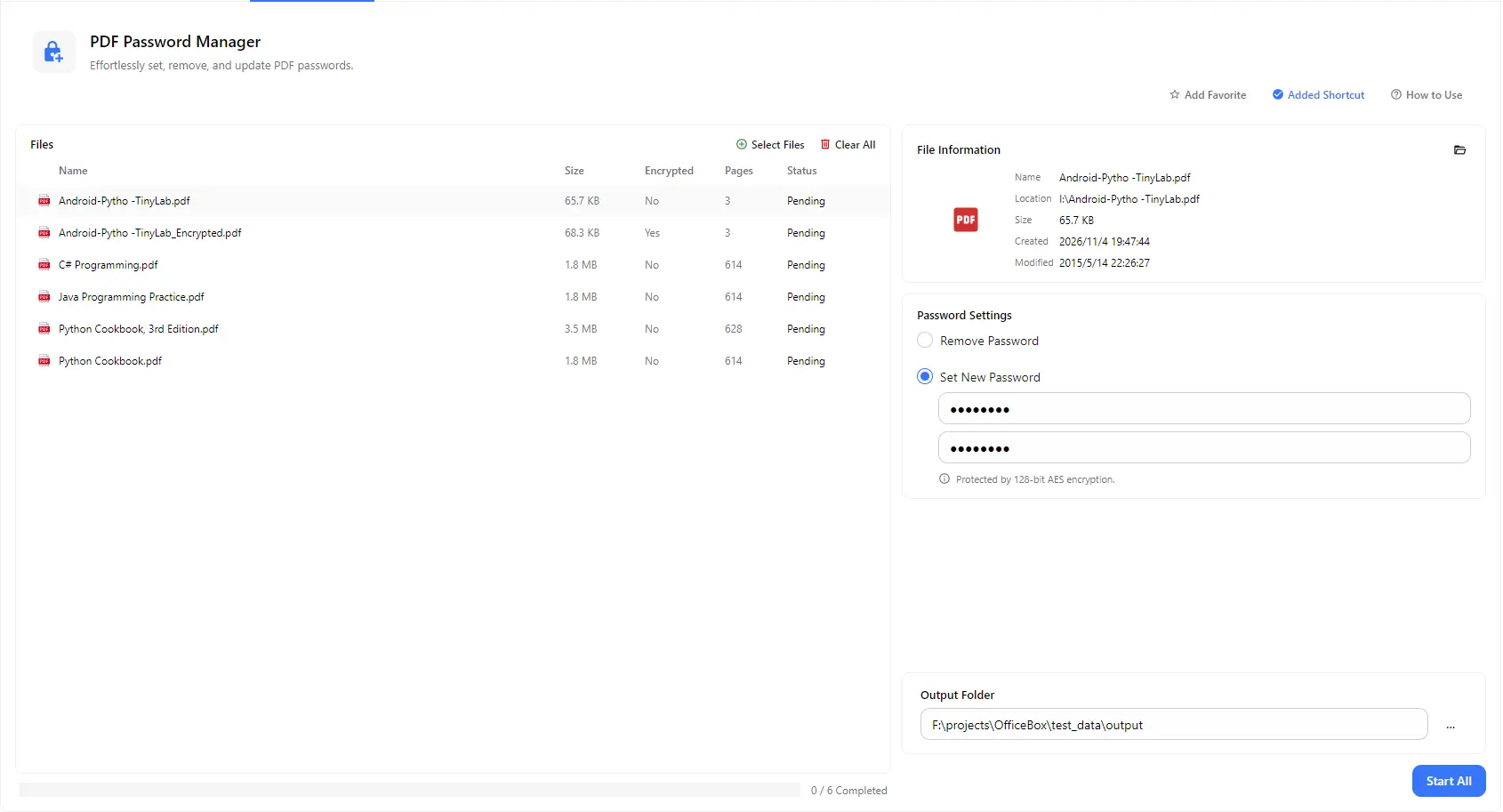
Enter a new password and confirm it to lock your PDFs, so only people with the password can open them. Protection uses 128-bit AES encryption.
Protect your PDFs with a password or remove the password from files you can already open. Add one PDF or a whole batch, check which files are encrypted, choose to set a new password or remove the current one, and save the results to the folder you choose.
Features
Enter a new password and confirm it to lock your PDFs, so only people with the password can open them. Protection uses 128-bit AES encryption.
Unlock PDFs you already have the password for. Enter the original password to remove it, so the file opens without a prompt every time.
Add multiple PDF files and process them together with a single Start All action, instead of protecting or unlocking each file one by one.
The file list shows each PDF's size, page count and encryption status, so you can quickly tell which files are protected and which are not.
Select any file to see its name, location, size and created and modified dates, so you always know which document you are working on.
Choose an output folder and find all your processed PDFs in one place. An overall progress count shows how many files are completed.
How it works
Open PurZeno and select PDF Password Manager from the tool list.
Click Select Files to add one or more PDFs. Choose Set New Password and enter it twice to confirm, or choose Remove Password and enter the current password.
Choose an output folder and click Start All. When all files show as completed, open the folder to find your protected or unlocked PDFs.
Use cases
Add a password to contracts, financial statements, HR records and client reports before sending them by email or storing them in the cloud.
Unlock your own statements, invoices and reports so you do not need to type the password every time you open, print or archive them.
Apply one password to a whole folder of PDFs, such as monthly reports or documents for one client, in a single run.
Remove the password first so you can merge, compress, watermark or convert the document, then add a new password again before sharing.
Good to know
Click Select Files to add your PDF, choose Set New Password, enter the password twice, select an output folder and click Start All. The protected copy is saved to that folder.
Add the encrypted PDF, choose Remove Password, enter the current password, select an output folder and click Start All. You will get a copy that opens without a password.
No. To remove a password you need to enter the original password. This tool is designed to unlock files you are authorized to access, not to recover or bypass lost passwords.
Yes. Add as many PDFs as you need and process them all with Start All. Each file shows its own status, and the progress bar tells you how many files are completed.
Passwords set with this tool use 128-bit AES encryption. Choose a long password that mixes letters, numbers and symbols, and avoid sharing it in the same message as the file.
No. PurZeno processes PDF files locally on your computer. Your documents and passwords are not uploaded to PurZeno or any third-party server.
Get PDF, image and file tools in one private desktop app, and keep your files on your computer.
Download PurZeno